Suppose you have used Ninja Form Plugin in your wordprss website.
Ninja form provide you the option to validate the fields like email address, phone numbers format and required validation.
But in case you have to add any custom validation then Ninja form provide you the hook to implement custom client side validation.
Link https://developer.ninjaforms.com/codex/client-side-field-validation/
So this example is to validation a field which require to have combination of alphabets and numbers, But not just numbers
- Step 1Create a function to check if given value is numbers only
function isNumber(n) { return !isNaN(parseFloat(n)) && isFinite(n); } - Step 2Create a function to check if given values is alphanumeric
function is_alphaNumeric(str) { regexp = /^[A-Za-z0-9\s,.-]+$/; if (regexp.test(str)) { return true; } else { return false; } } - Step 3Hook into ninja form function to trigger your custom validation before submit
    var myCustomFieldController = Marionette.Object.extend( {
    initialize: function() {

        // On the Form Submission's field validaiton...
        var submitChannel = Backbone.Radio.channel( 'submit' );
        this.listenTo( submitChannel, 'validate:field', this.validateRequired );

        // on the Field's model value change...
        var fieldsChannel = Backbone.Radio.channel( 'fields' );
        this.listenTo( fieldsChannel, 'change:modelValue', this.validateRequired );
    },

    validateRequired: function( model ) {

        //console.log(model.get( 'id' ))
        if(model.get( 'id' ) == '48'){ // Here 48 is the id of the field which has to be validated
			if( model.get( 'value' ) && !is_alphaNumeric(model.get( 'value' )) ) {
				// Add Error to Model
 				Backbone.Radio.channel( 'fields' ).request( 'add:error', model.get( 'id' ), 'custom-field-error', 'Profession fields should contain alphabets and numbers only' );

			}
			else if( model.get( 'value' ) && isNumber(model.get( 'value' )) ) {
				// Add Error to Model
 				Backbone.Radio.channel( 'fields' ).request( 'add:error', model.get( 'id' ), 'custom-field-error', 'Profession fields should contain alphabets and numbers and not just numbers' );

			}
			else {
				// Remove Error from Model
				Backbone.Radio.channel( 'fields' ).request( 'remove:error', model.get( 'id' ), 'custom-field-error' );
			}

		}

        // Check if Model has a value
    }
});

// On Document Ready...
jQuery( document ).ready( function( $ ) {

    // Instantiate our custom field's controller, defined above.
    new myCustomFieldController();
});
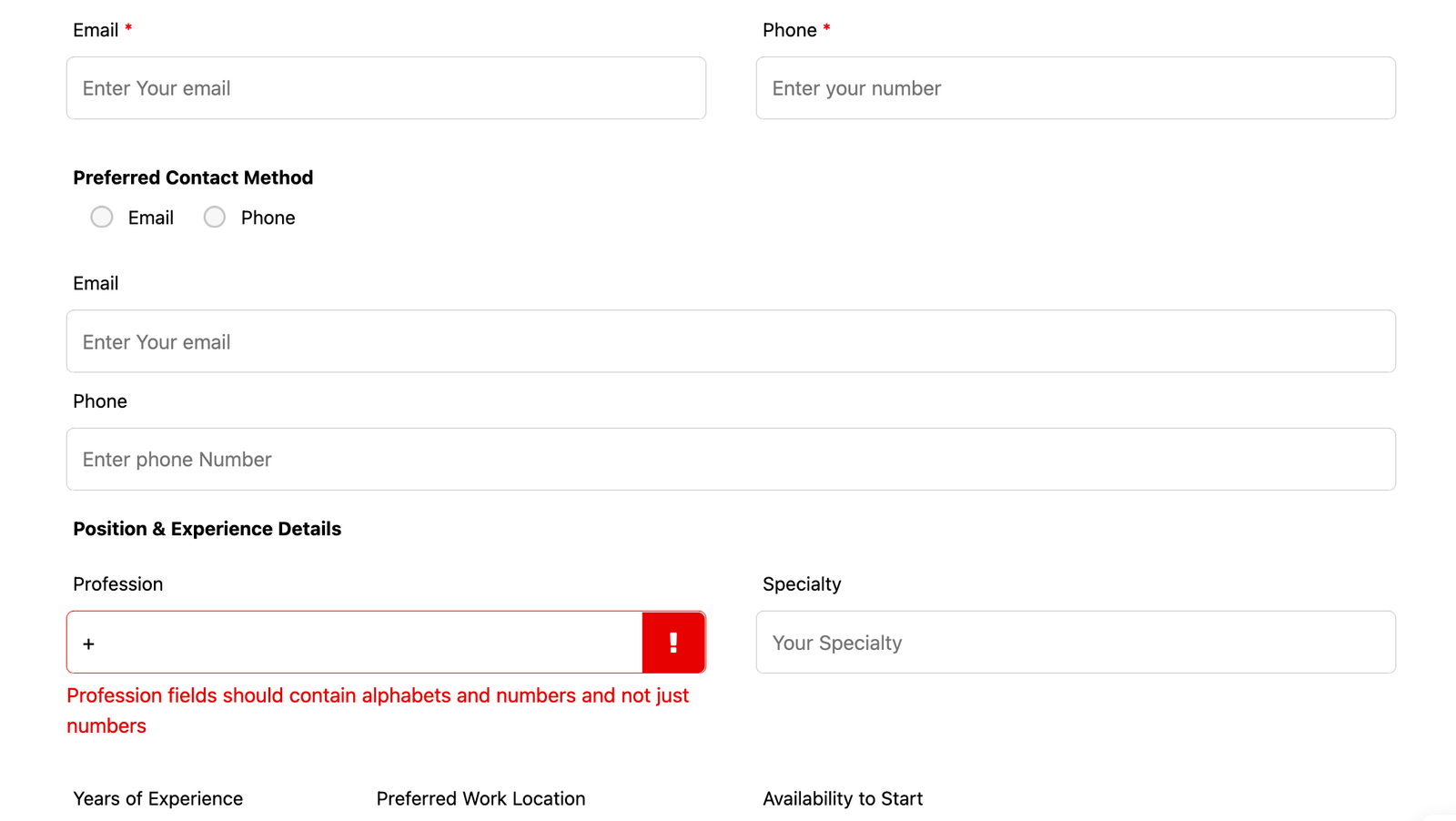
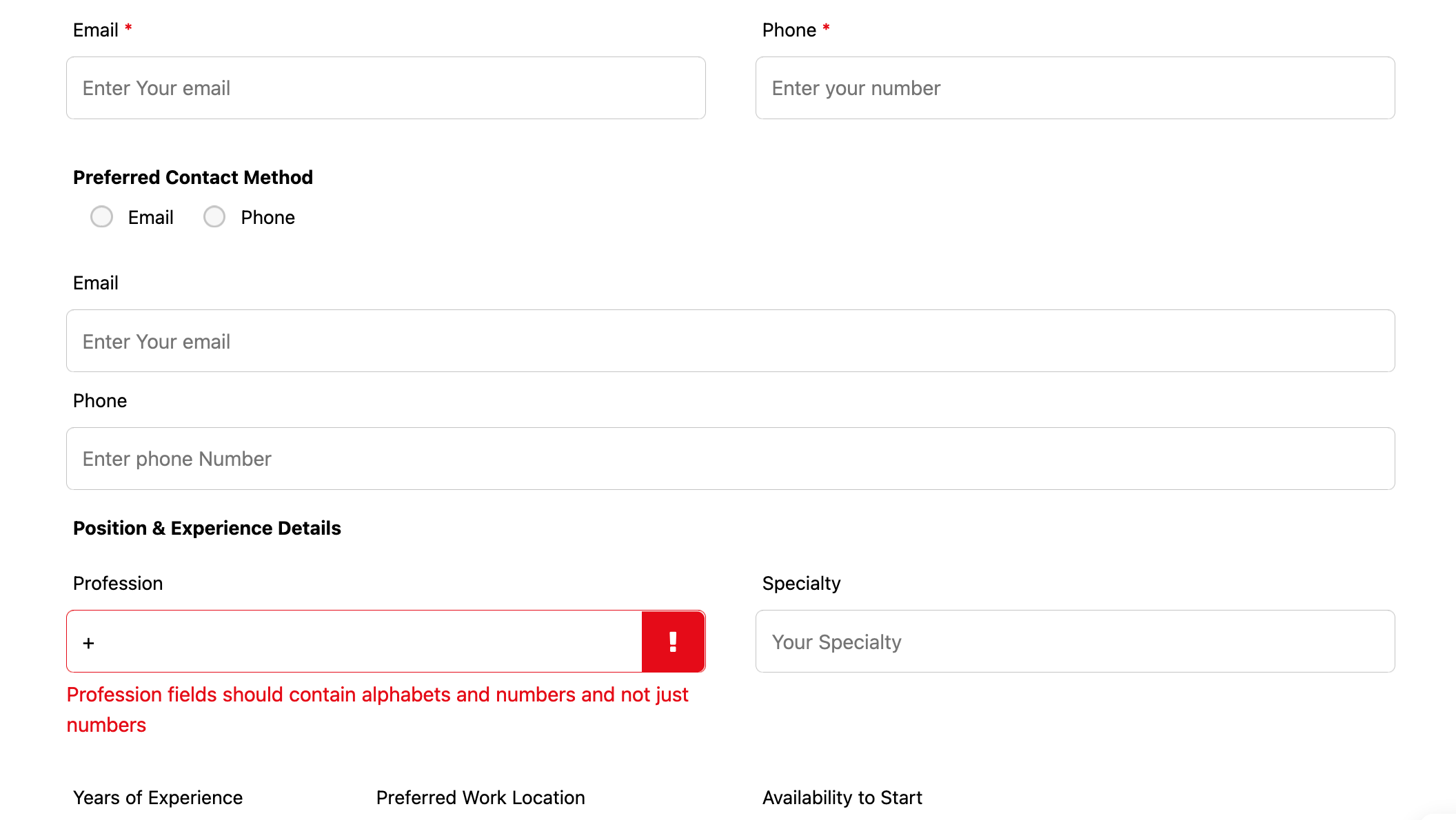
This is all done. Now you can see the form throwing the error message that we have set in the custom field
You can also check the post on codepen